 SuperX
Get live statistics and analysis of byte.sol — e/acc's profile on X / Twitter

19 - Morya Re • Rustacean • Grad: @solanaturbine • College dropout
The Educator
byte.sol is a passionate Rustacean and OS enthusiast who loves breaking down complex tech topics into easy, digestible learning paths. With a background marked by curiosity and self-driven learning, this profile is all about sharing knowledge and empowering followers to demystify Linux, Rust, and system programming. Whether it's building Git from scratch or an introductory Linux series, byte.sol is the go-to digital guide for tech adventurers.
Top users who interacted with byte.sol — e/acc over the last 14 days

CS | Linux | Movies | Unemployed

19 | jlptdojo.online

Baby polymath | ✉️: d4rshtw@gmail.com Blog: medium.com/@darshan11pati…

A developer who build websites | MERN Stack

Jack sendarcade.fun | GSoC'25 @OpenMRS | #swamikoragajja

🚀 DevOps Learner | Building CI/CD Pipelines, Cloud Infra & Automation 🐳 Docker | ⚙️ Jenkins | ☁️ AWS | 🧱 Terraform | ☸️ Kubernetes 📈 Learning in public

System Admin @Wipro (SIM) | BTech '28 @bitspilaniindia | DevOps & Cloud enthusiast⚙️ | Turning infra into innovation. Let’s automate the future✨!

17 arjun of kalyug

19 • cs • ml • space • blogs

Building @skyflo_ai | Cloud Architect @storylaneio

Software Developer && I told you so guy

Electrical/Electronic Engineer | .NET/C# Dev. | ReactJS | Mathematics Tutor | PGD student | Inspiring minds through logic, learning, and innovation.
byte.sol talks about building Git from scratch like it’s a casual Sunday morning coffee chat—meanwhile, most of us are still trying to remember our passwords without breaking a sweat.
Their multi-week Linux 101 series has become a go-to resource for beginners eager to master the command line and system fundamentals, proving their impact on followers looking to level up.
Their life purpose is to educate and inspire the next generation of developers by making low-level programming accessible, practical, and enjoyable for everyone, regardless of formal education paths.
byte.sol values hands-on learning, open access to knowledge, and the power of community-driven education. They believe that understanding the foundations of computing empowers people to control technology rather than be controlled by it.
Their key strength lies in the ability to create engaging, step-by-step learning journeys that simplify technical complexity and build strong community engagement around educational content.
They might sometimes get overly technical or focus heavily on niche topics like OS and Rust, potentially missing broader or entry-level audience engagement opportunities.
To grow their audience on X, byte.sol should consider mixing in more bite-sized, relatable content like quick tips, memetic tech humor, or personal anecdotes alongside deep dives. Engaging directly with followers by answering common beginner questions in threads can also boost visibility and follower loyalty.
Fun fact: Despite being a college dropout, byte.sol leverages real-world programming projects and curated content to build a highly regarded educational platform on X.
Top tweets of byte.sol — e/acc

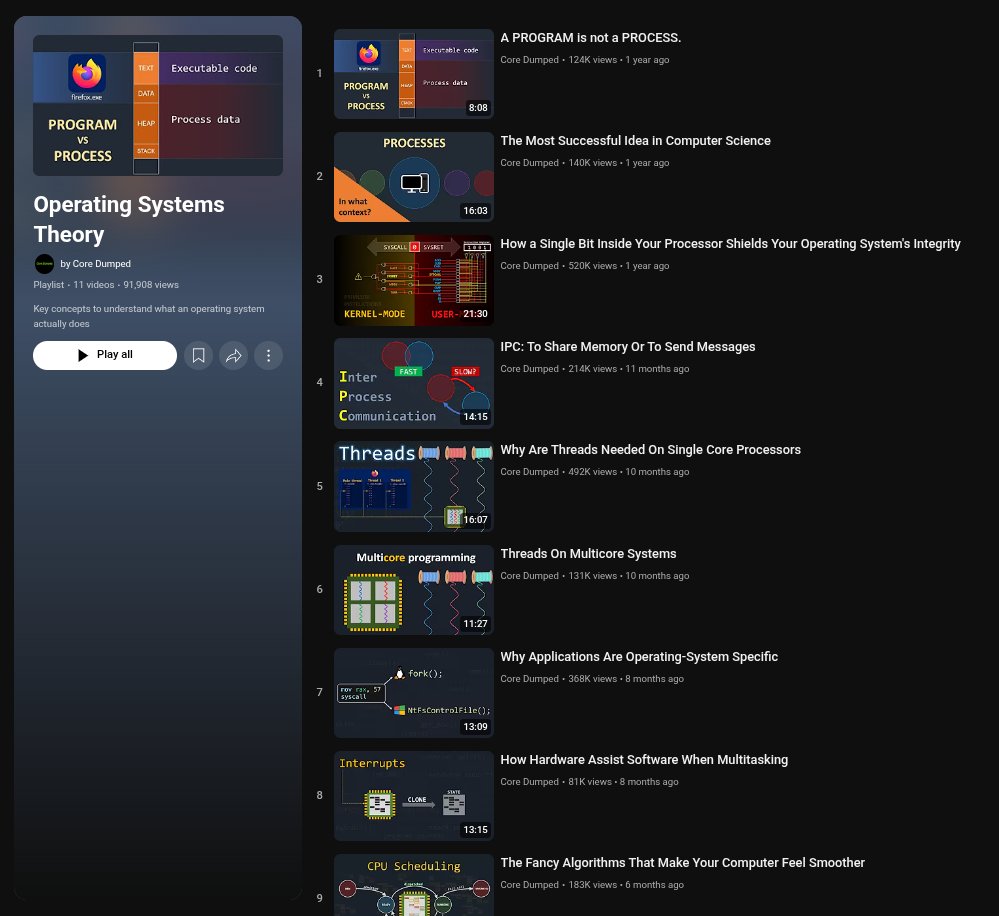
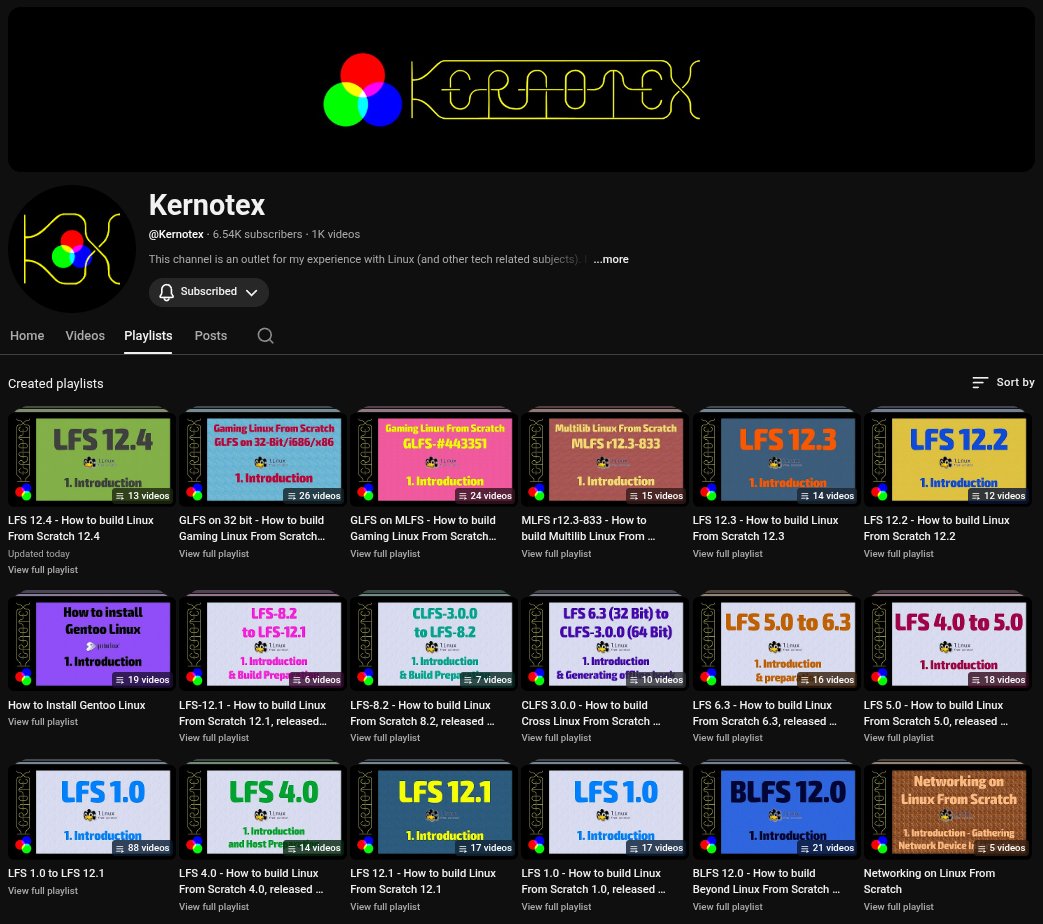
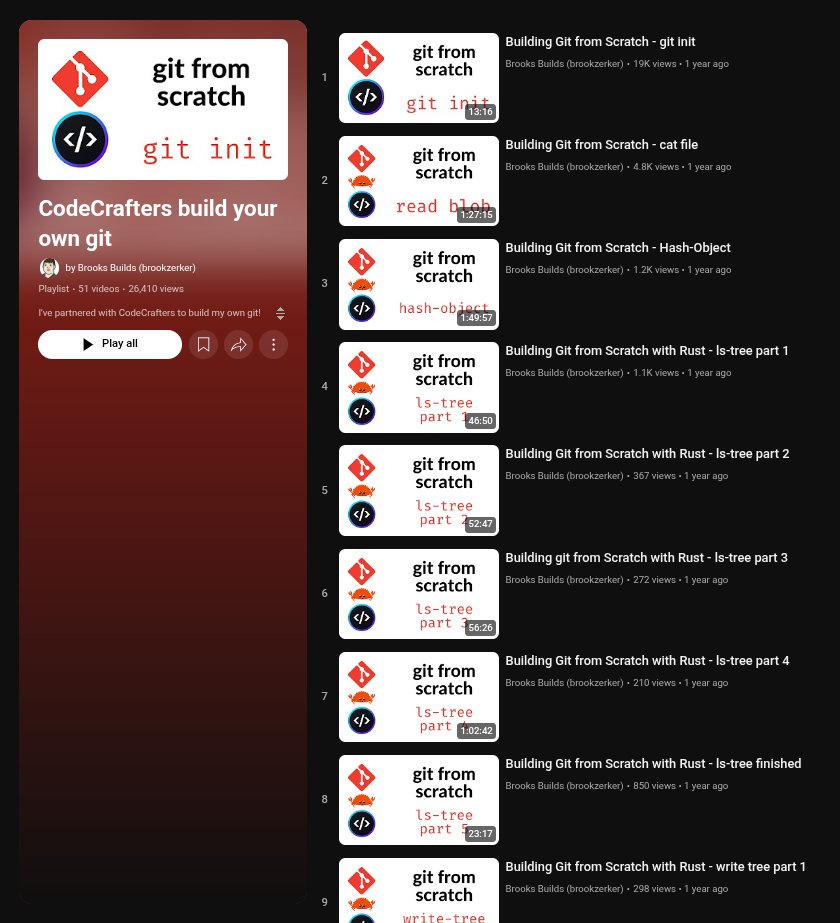
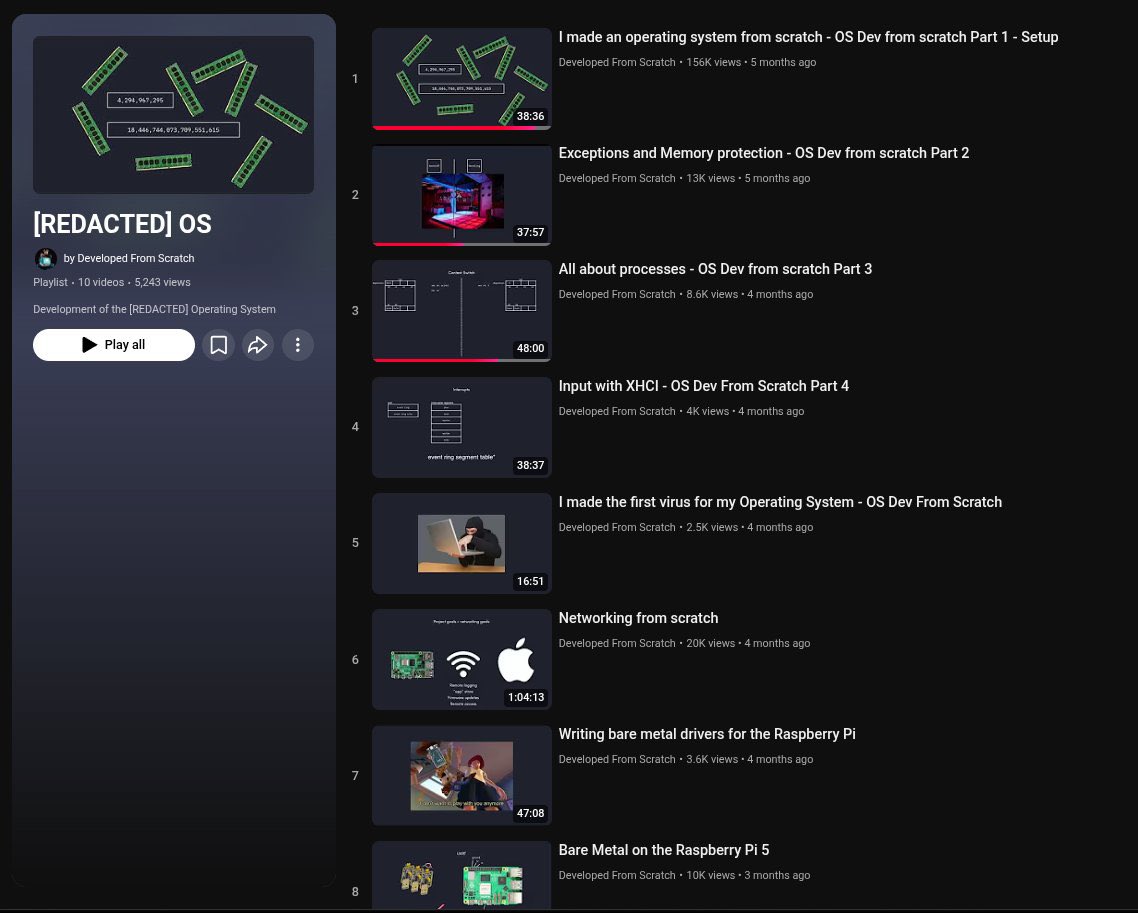

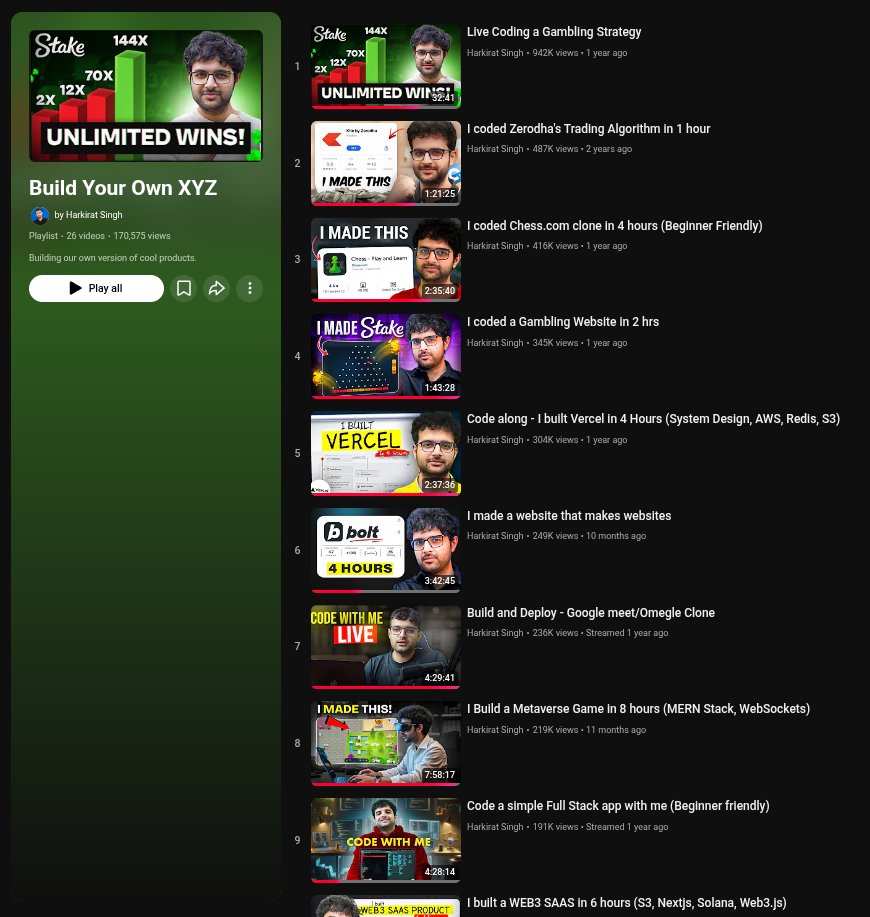

Wanna learn Rust? 🦀 The Rust Book (official): doc.rust-lang.org/book/ Let's Get Rusty (best YT series): youtube.com/c/LetsGetRusty Rustlings (hands-on practice): rustlings.rust-lang.org Rust by Example (learn by doing): doc.rust-lang.org/rust-by-exampl… Stop procrastinating. Start with chapter 1. The compiler will roast you. Then you'll write code that never crashes. Absolutely worth it 🔥

Wanna learn Solana ? Solana developer docs: doc.rust-lang.org/book/ Basic program examples: github.com/solana-develop… Solana bootcamp series: youtube.com/playlist?list=… Join the best programs out there: @solanaturbine @AckeeBlockchain Solve challenges : @blueshift_gg Follow the OG devrels: @b_migliaccio @jacobvcreech @HeyAndyS @SolPlay_jonas

Day 3/14 of Linux 101 series: The Terminal/Shell Today we're diving into the most powerful tool in Linux - the command line 🧵 1. What is the Terminal? > The terminal is a text-based interface to communicate with your computer. > Instead of clicking icons, you type commands. > Also called: Shell, Command Line, CLI (Command Line Interface). > It's not scary - it's actually more efficient once you get it. This is where Linux shows its true power. 2. Terminal vs Shell - The difference: > Terminal: The window/application you see (like GNOME Terminal, Konsole, Ghostty). > Shell: The program running inside that interprets your commands. > Common shells: Bash (default on most Linux), Zsh, Fish. Think: Terminal is the container, Shell is the brain. 3. Why developers LOVE the terminal: > Speed: Type commands faster than clicking through menus. > Automation: Write scripts to do repetitive tasks. > Power: Access to tools that have no GUI. > Remote work: SSH into servers (they only have terminal). > Precision: Exactly what you want, no ambiguity. Once you learn it, you'll never want to go back. 4. The anatomy of a command: username@hostname:~$ Breaking it down: > username - Your login name > hostname - Your computer's name > ~ - Current directory (~ means home) > $ - Regular user (# means root/admin) This is called the "prompt" - it's waiting for your command. 5. Your first command: pwd $ pwd > pwd = Print Working Directory > Shows where you are in the filesystem > Output: /home/username (or similar) Think of it as "Where am I right now?" You can't get lost if you know pwd. 6. Understanding the Linux filesystem: > Everything starts from root: / > Your files are in: /home/username > Programs live in: /bin, /usr/bin > System config: /etc > Temporary files: /tmp Unlike Windows (C:\, D:\), Linux has ONE tree starting from / 7. Basic navigation commands: > ls - List files in current directory > cd - Change directory > pwd - Print working directory Examples: ls → shows files cd Documents → go into Documents folder cd .. → go up one level cd ~ → go to home directory These three commands = 80% of navigation. 8. The power of text-based interfaces: Why text beats GUI: > Repeatable: Same command = same result every time. > Scriptable: Chain commands together. > Remote-friendly: Works over slow connections. > Documentation: Easy to share commands (copy-paste). > Universal: Works on any Linux system. Text is timeless. 9. Overcoming terminal fear: Common fears: > "I'll break something" - You won't (unless you use sudo carelessly). > "I'll lose my files" - Commands warn you before deleting. > "It's too complex" - Start with 5-10 commands, that's enough. Pro tip: Tab key auto-completes. Arrow keys recall previous commands. 10. Practice challenge for today: Open your terminal and try: > pwd - see where you are > ls - see what's in current directory > cd Documents - go to Documents > pwd - confirm you moved > cd ~ - go back home Do this 5 times. Muscle memory builds confidence. Tomorrow (Day 4): File navigation deep dive. > Absolute vs relative paths. > Moving around the filesystem efficiently. > Essential shortcuts. Drop a 🐧 if you opened the terminal today!
Most engaged tweets of byte.sol — e/acc

Day 3/14 of Linux 101 series: The Terminal/Shell Today we're diving into the most powerful tool in Linux - the command line 🧵 1. What is the Terminal? > The terminal is a text-based interface to communicate with your computer. > Instead of clicking icons, you type commands. > Also called: Shell, Command Line, CLI (Command Line Interface). > It's not scary - it's actually more efficient once you get it. This is where Linux shows its true power. 2. Terminal vs Shell - The difference: > Terminal: The window/application you see (like GNOME Terminal, Konsole, Ghostty). > Shell: The program running inside that interprets your commands. > Common shells: Bash (default on most Linux), Zsh, Fish. Think: Terminal is the container, Shell is the brain. 3. Why developers LOVE the terminal: > Speed: Type commands faster than clicking through menus. > Automation: Write scripts to do repetitive tasks. > Power: Access to tools that have no GUI. > Remote work: SSH into servers (they only have terminal). > Precision: Exactly what you want, no ambiguity. Once you learn it, you'll never want to go back. 4. The anatomy of a command: username@hostname:~$ Breaking it down: > username - Your login name > hostname - Your computer's name > ~ - Current directory (~ means home) > $ - Regular user (# means root/admin) This is called the "prompt" - it's waiting for your command. 5. Your first command: pwd $ pwd > pwd = Print Working Directory > Shows where you are in the filesystem > Output: /home/username (or similar) Think of it as "Where am I right now?" You can't get lost if you know pwd. 6. Understanding the Linux filesystem: > Everything starts from root: / > Your files are in: /home/username > Programs live in: /bin, /usr/bin > System config: /etc > Temporary files: /tmp Unlike Windows (C:\, D:\), Linux has ONE tree starting from / 7. Basic navigation commands: > ls - List files in current directory > cd - Change directory > pwd - Print working directory Examples: ls → shows files cd Documents → go into Documents folder cd .. → go up one level cd ~ → go to home directory These three commands = 80% of navigation. 8. The power of text-based interfaces: Why text beats GUI: > Repeatable: Same command = same result every time. > Scriptable: Chain commands together. > Remote-friendly: Works over slow connections. > Documentation: Easy to share commands (copy-paste). > Universal: Works on any Linux system. Text is timeless. 9. Overcoming terminal fear: Common fears: > "I'll break something" - You won't (unless you use sudo carelessly). > "I'll lose my files" - Commands warn you before deleting. > "It's too complex" - Start with 5-10 commands, that's enough. Pro tip: Tab key auto-completes. Arrow keys recall previous commands. 10. Practice challenge for today: Open your terminal and try: > pwd - see where you are > ls - see what's in current directory > cd Documents - go to Documents > pwd - confirm you moved > cd ~ - go back home Do this 5 times. Muscle memory builds confidence. Tomorrow (Day 4): File navigation deep dive. > Absolute vs relative paths. > Moving around the filesystem efficiently. > Essential shortcuts. Drop a 🐧 if you opened the terminal today!

People with Educator archetype

Building wealth on a teacher salary | Posting daily about dividend investing and building wealth | Proud husband and Dad | Not financial advice

AI Educator. Helping you to your Tech tools, Digital skills & AI.✉️ DM for collaboration.

I simplify System Design, and System Design will make you a better Software Engineer. System Design • Databases • Algorithms • AI Enthusiast

CPO @Cyfrin | Ex @Alchemy | Created @cyfrinupdraft and @AlchemyLearn | Robotics | Making web3 mainstream

C•S INSTRUCTOR//Purple Teamer // ISC² certified //InfoSec //Documenting My Journey into Cybersecurity & I Post Educative Content// Turn on Post Notis 🔔

I teach people how to accelerate their life with AI | Educator & Engineer | FREE AI LESSONS 👉 discord.gg/amR4AEjqh4

On a mission to make quality education accessible to all. Till then explaining computers @CSNoBSdotcom and monitoring the situation @AlertOps 🤙

Sharing insights on Al, Tech Tools, Business Strategy * Level up Al with me, Tech & Digital Skills * Al Educator 📩 neelshah13165@gmail.com

AI Educator. Helping you to your AI, Tech Tools & Digital skills.💬 DM for collaboration

AI Educator | Breaking down AI news, tools & tutorials | Making AI simple, useful & exciting for everyone

Al Educator | Unlocking income with Al, tech tools & digital skills | DM to Collab🤖

Student of the market | YouTube👇Mentorship | I wont DM you first |
Explore Related Archetypes
If you enjoy the educator profiles, you might also like these personality types:
